Unreal Engine integration
Description: Export a Narratyr project into an Unreal Engine project and drive dialogues and quests from C++ or Blueprint.
Prerelease. Details here may change before release.
Narratyr includes the Unreal plugin with the editor instead of distributing it through Fab. The exporter writes the plugin into your project because your data types determine part of its code.
The Unreal exporter adds these files to your project:
- A plugin that runs graphs and provides runtime features.
- Generated C++ types based on entity types, option sets, and function definitions.
- Data under
NarratyrData/, including tables, images, and audio. - Configuration for the importer. The exporter adds only its managed settings and won't replace your other configuration.
Before you start
- Unreal Engine 5.4 or later with a C++ project. The exporter writes a project module
and registers it in your
.uproject. Add any C++ class in Unreal Editor to convert a Blueprint-only project. You don't need to rebuild the engine. - A compiler toolchain, such as Visual Studio, Rider, or
Xcode. Installing the module changes code and requires a build.
Setting the export path
Open the Export view in Narratyr and pick the Unreal tab.
Point the project path to the folder that contains your .uproject file. Choose the project
root instead of Content/, Source/, or its parent. The exporter writes paths relative to that
folder:
MyGame/
  MyGame.uproject      <-- the exporter looks for this
  Config/
  Content/
  Source/
So for a project at D:/Games/MyGame/MyGame.uproject, the export path is
D:/Games/MyGame.
If the exporter can't find a .uproject in the selected folder, it writes the files and warns
that module registration failed.
Narratyr remembers a separate path for each project and engine.
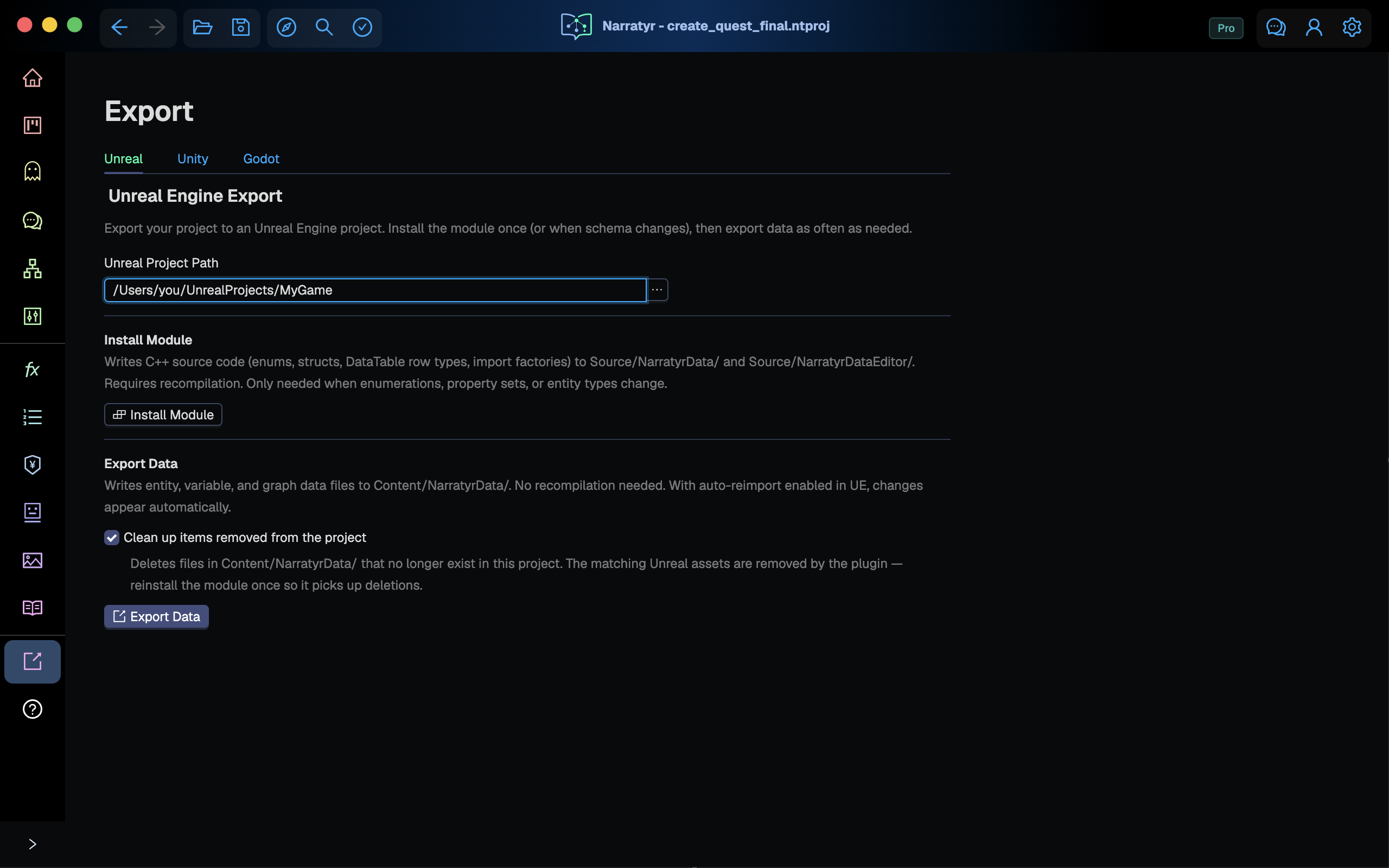
Install the module and export data
| Install Module | Export Data | |
|---|---|---|
| Writes | C++ source and the plugin | Data files under Content/ |
| Needs a recompile | Yes | No |
| Run after | The first project export or changes to option sets, property sets, entity types, functions, or quest graphs | Changes to dialogue, quests, entity values, or variables |
| Typical frequency | Occasionally | Whenever you want to see a change. |
Definitions and content. Install the module after changing data definitions. Export data after changing project content.
Module installation
- Writes the plugin to
Plugins/NarratyrRuntime/. - Writes generated per-project code to
Source/NarratyrGameData/. - Adds
NarratyrRuntimetoPluginsandNarratyrGameDatatoModulesin.uproject. - Writes a managed block into
Config/DefaultEditorPerProjectUserSettings.inithat excludesContent/NarratyrDatafrom Unreal's Auto Reimport watcher. The plugin importer handles those files. Comment markers surround the managed block, and later installations only replace that block.
Close Unreal Editor if it's open, build the project, and reopen it. Blueprint displays new
UENUM and USTRUCT types after compilation loads the module.
Data export
Export Data writes source files into Content/NarratyrData/ plus a translator handoff folder outside
Content/. The plugin watches Content/NarratyrData/ and imports anything that changed
into the matching Unreal asset. It hashes contents so an unchanged file doesn't dirty its
.uasset. With the editor open, you can usually return to it and find the assets
already current.
Clean up items removed from the project (the checkbox) deletes files under
Content/NarratyrData/ that no longer match items in the project.
Don't add your own data to NarratyrData through Unreal Editor or reorganize the folder
manually. The exporter manages this directory and can remove unexpected files.
Exported project structure
MyGame/
  MyGame.uproject                    Modules + Plugins entries added
  Config/
    DefaultEditorPerProjectUserSettings.ini   auto-reimport exclusion (managed block)
  Plugins/
    NarratyrRuntime/                 the plugin (same in every project)
      Source/NarratyrData/           runtime module
      Source/NarratyrDataEditor/     editor module (importers, debug tooling)
  Source/
    NarratyrGameData/                generated from YOUR document
      Public/NarratyrEnums.h         your enumerations
      Public/NarratyrPropertySets.h  your property sets
      Public/NarratyrEntityTypes.h   your entity types, as DataTable row structs
      Public/NarratyrFunctionHost.h  one method per function you declared
      Public/NarratyrEntityRegistry.h  typed lookups for your entity types
      Public/NarratyrQuestIds.h      an enum of your quests, for Blueprint pins
  Content/
    NarratyrData/                    written by Export Data, imported by the plugin
      Entities/    DT_<EntityType>   one DataTable per entity type
      Variables/   DT_Variables
      Quests/      DT_Quests
      Graphs/      one asset per dialogue / quest graph
      Localization/ST_NarratyrStrings
      UI/          rich text styles
      Assets/      images and audio, mirroring your Narratyr asset folders
      GraphRegistry                  id -> graph asset lookup
  NarratyrLocalization/              CSV + XLIFF for translators (outside Content, never imported)
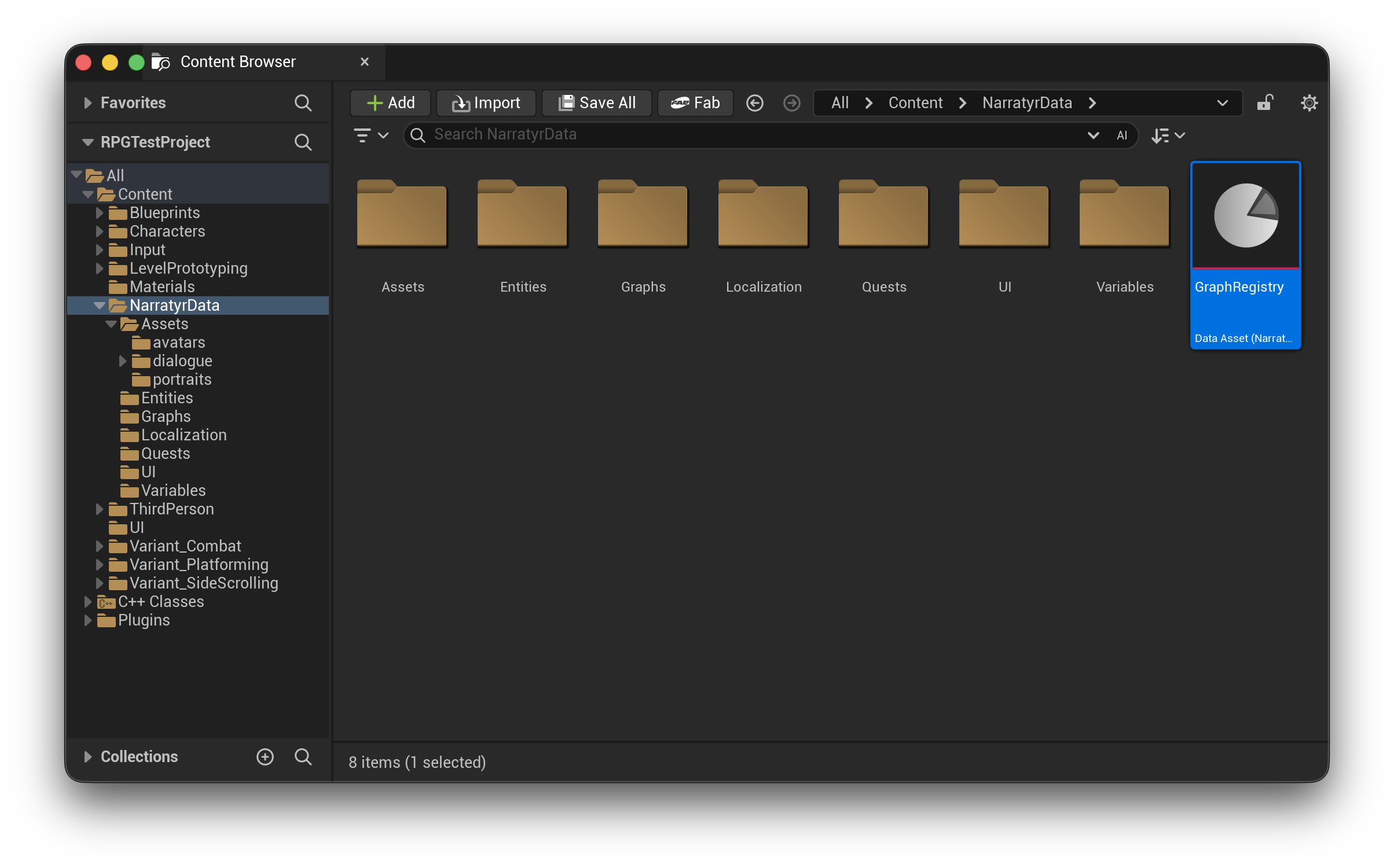
Everything under Plugins/NarratyrRuntime/, Source/NarratyrGameData/, and
Content/NarratyrData/ contains generated files that each export can overwrite. Put your own code
in your own module and subclass what you need. Never edit the generated files.
Runtime classes
| Class | Kind | Purpose |
|---|---|---|
UNarratyrVariableManager |
Game instance subsystem | Read and write Narratyr variables. Register your function host and interpolate @{Var} in text |
UNarratyrQuestManager |
Game instance subsystem | Start, complete, and query quests. Provides delegates for game bindings |
UNarratyrQuestInstance |
Object, one per quest | Live state for objectives and flow players. Often used for interface bindings |
UNarratyrFlowPlayer |
Object | Walk a quest or dialogue graph. Registered callbacks handle decisions and presentation |
UNarratyrGraphAsset |
Data asset | One imported dialogue or quest graph |
UNarratyrGraphRegistry |
Data asset | Graph id to graph asset, for resolving graphs by id |
UNarratyrEntityRegistry |
Game instance subsystem (generated) | Look up entities by ID, display name, portrait, or typed row |
UNarratyrFunctionHost |
Object (generated) | Subclass this with your function definitions. |
UNarratyrFieldValueLibrary |
Blueprint library | Read a node's or graph's property values by name |
UNarratyrSaveLibrary |
Blueprint library | Capture and restore the whole Narratyr state |
FNarratyrGraphReference + reference library |
Struct + Blueprint library | References to quest, dialogue, or fragment graphs via a stable id |
FNarratyrObjectiveReference + reference library |
Struct + Blueprint library | Stable objective ID. Use this instead of FName when the editor should display a picker |
ENarratyrQuestId + UNarratyrQuestIdLibrary |
Enumeration + library (generated) | Legacy quest list pins retained for compatibility |
Everything is BlueprintType with Narratyr|… categories, so the same API is available
from Blueprint under Narratyr in the node palette.
UNarratyrVariableManager
Manages the runtime value of every variable you declared in
Variables. Loads DT_Variables on startup.
UNarratyrVariableManager* Variables =
    GetGameInstance()->GetSubsystem<UNarratyrVariableManager>();

Variables->SetVariableInt(TEXT("BoarsKilled"), 5);
const bool bMet = Variables->GetVariableBool(TEXT("MetTheJarl"));
Beyond typed get/set it gives you:
- Lists and sets:
AddToVariableList*,RemoveFromVariableList*,VariableListContains*,GetVariableItemCount, plus wildcard nodes (Get Variable As List) whose pin adopts whatever array type you connect, including your ownUENUMs. OnVariableChanged: broadcasts on every successful write. This also wakes up gates and event listeners.InterpolateVariables: resolves variable interpolation and variable-based text selection in any player-facing text.InterpolateDialogueText: resolves a dialogue node's full text when given its stable node id, including the contextual@{visited, ...}directive. Use this for lines you are about to display. See Text directives.SetFunctions: registers your function host.ResetToDefaults: reloads values from the DataTable for a new game.
UNarratyrQuestManager
A game instance subsystem, so this remains alive between level loads.
This reads DT_Quests and builds a UNarratyrQuestInstance per
quest, and owns quest lifecycle.
UNarratyrQuestManager* Quests = GetGameInstance()->GetSubsystem<UNarratyrQuestManager>();

Quests->DiscoverQuest(TEXT("down_with_the_jarl"));   // known but not running
Quests->StartQuest(TEXT("down_with_the_jarl"));      // runs the quest graph
Quests->CompleteObjective(TEXT("down_with_the_jarl"), TEXT("kill_the_jarl"));
Queries worth knowing: GetActiveQuests, GetQuestsByState, GetQuestDefinition (title,
description, and objectives as localized text), GetQuestPrerequisites, and
AreQuestStartRequirementsSatisfied.
Objective completion. The runtime activates and tracks objectives. Your game must notify the
quest manager when gameplay satisfies an objective. Call CompleteObjective directly, with an
optional Failed or NotApplicable state. You can also update a variable through
UNarratyrVariableManager when a Gate or Event Listener waits for that value. Flow players pause
at those nodes and resume automatically after the condition becomes true.
UNarratyrFlowPlayer
UNarratyrFlowPlayer runs a graph. The quest manager creates one for a quest instance and adds
more players for concurrent flows. Create a player directly when game code starts a standalone
dialogue.
It advances automatically through nodes that aren't stopping points and pauses on
Dialogue and Choice nodes. At a stop you call Continue(), Choose(Index), or
Complete() to resume.
// Standalone conversation with a UNarratyrGraphAsset* property.
Flow = NewObject<UNarratyrFlowPlayer>(this);          // keep this in a UPROPERTY!
Flow->Initialize(GetGameInstance());
Flow->OnDialogueEntered.AddDynamic(this, &AMyNPC::HandleLine);
Flow->OnFlowEnded.AddDynamic(this, &AMyNPC::HandleConversationEnded);
Flow->Play(ConversationGraph);
Hold a reference. A flow player you create is a plain UObject. Store it in a
UPROPERTY() or it will be garbage collected mid-conversation.
Play with no start node resolves to the graph entry point. This is usually what you want.
Narratyr handles save/restore, so there isn't a reason to play from the middle of a
graph in normal usage.
To resolve a graph by id instead of referencing the asset, load the registry:
UNarratyrGraphRegistry* Registry = LoadObject<UNarratyrGraphRegistry>(
    nullptr, UNarratyrGraphRegistry::DefaultAssetPath);
UNarratyrGraphAsset* Graph = Registry->ResolveGraph(...);
UNarratyrEntityRegistry
The exporter generates this class from your entity types. It indexes exported entities by their stable Narratyr ID.
UNarratyrEntityRegistry* Entities =
    GetGameInstance()->GetSubsystem<UNarratyrEntityRegistry>();

FNarratyrEntityInfo Info;
if (Entities->FindEntity(Node.SpeakerEntity, Info))
{
    // Info.LocalizedDisplayName is the player-facing FText.
    // Info.DisplayName remains the source/authoring FString.
    // Info.ProfileImage, Info.EntityType, Info.GameId
}

FNarratyrCharacterRow Row;                       // named after YOUR entity type
Entities->FindCharacter(Node.SpeakerEntity, Row);
FindEntity returns the common fields for an entity, including its ID, names, profile image,
and type. The shared Narratyr String Table provides LocalizedDisplayName as an FText under
the stable key entity.{entityId}.displayName. Use it for
player-facing UI. The existing DisplayName remains an FString for source-language
authoring labels and editor tooling. The generated Find<TypeName>
accessors expose both names on the full typed row, and
FindPropertySet_<Name> pulls out one property set. NarratyrIdToGameId /
GameIdToNarratyrId translate between Narratyr ids and the external ids your game uses.
Entity references
Use Narratyr Entity Reference when an actor or another editable object needs to
reference an exported entity. Its Details panel picker searches display names, game IDs,
and stable IDs across the imported tables under Content/NarratyrData/Entities.
The stored value is always the stable Narratyr ID, so renaming an entity or changing its
game ID doesn't change the reference.
In Blueprint:
- Add a variable and choose Narratyr Entity Reference as its type.
- Compile the Blueprint, then choose the entity in Class Defaults.
- Enable Instance Editable to choose different entities for placed actor instances.
- Use Get Narratyr Entity ID to connect the reference to Find Entity or other functions that want an id.
Make Narratyr Entity Reference constructs one from an existing stable ID. Is Narratyr Entity Reference Set only tests whether the ID is nonempty, not whether the entity exists. Use the registry's lookup result to check existence at runtime.
The picker offers an All entity types filter, Browse to open the selected entity's table, and Clear to remove the reference. The type filter is a browsing convenience, not a restriction stored on the variable. Duplicate display names or game IDs remain separate choices and display their stable IDs. The picker highlights a missing entity but preserves its ID, including when a table temporarily can't load.
The choices update after table changes or imports. Refresh runs the scan manually. If no choices appear, compile the generated row types and import the exported data. The picker reads tables through reflection.
In C++, include NarratyrEntityReference.h from the NarratyrData module:
UPROPERTY(EditAnywhere, BlueprintReadWrite, Category = "Narratyr")
FNarratyrEntityReference Character;

// Character.Id is the FName accepted by the generated entity registry.
Graph and objective references
Use Narratyr Graph Reference for a stable reference to any imported quest, dialogue,
or fragment graph. Its picker reads graph assets under Content/NarratyrData/Graphs and
can filter by graph type. Use Narratyr Objective Reference for an objective ID. Its
picker reads the same ObjectivesJson data the quest manager loads from DT_Quests.
Both types work as Blueprint variables, editable actor properties, and literal Blueprint node pins. Objective rows and selected values always include their quest prefix. The pickers mark missing graphs or objectives without clearing their stored IDs, so a temporary import failure doesn't rewrite actor or Blueprint defaults.
In C++, include NarratyrGraphReference.h and use the static types from the
NarratyrData module:
UPROPERTY(EditAnywhere, BlueprintReadWrite, Category = "Narratyr")
FNarratyrGraphReference Quest;

UPROPERTY(EditAnywhere, BlueprintReadWrite, Category = "Narratyr")
FNarratyrObjectiveReference Objective;
For a property that should initially browse only quests, add
meta = (NarratyrGraphType = "quest"). This setting acts only as an editor browsing filter.
The structure continues to store a general graph ID.
UNarratyrFieldValueLibrary
Dialogue, hub, and custom nodes can store project property values from the node's entity type, and a graph can store metadata the same way. Instead of breaking the structure and looping the array, read them by name:
const double Delay = UNarratyrFieldValueLibrary::GetFieldAsNumber(Node.FieldValues, TEXT("Delay"), 0.0);
const uint8 Mood  = UNarratyrFieldValueLibrary::GetFieldAsEnumByte(Node.FieldValues, TEXT("Mood"));
const FSoftObjectPath Portrait =
    UNarratyrFieldValueLibrary::GetFieldAsSoftObjectPath(Node.FieldValues, TEXT("Portrait"));
const TSoftObjectPtr<UObject> PortraitReference =
    UNarratyrFieldValueLibrary::GetFieldAsSoftObjectReference(Node.FieldValues, TEXT("Portrait"));
There is a GetFieldAs* for each scalar type, list variants, and a wildcard
Get Field As List whose pin adopts your UENUM array type with no cast.
For an asset field, Get Field As Soft Object Reference returns a value ready
to pass directly to Load Asset Blocking, then cast the loaded object to the
expected class (such as Texture2D). Get Field As Soft Object Path is
available when code needs the path itself. Missing fields, or fields that are
not assets, return an empty path/reference.
Flow player events you need to handle
Narratyr doesn't draw the interface. The runtime supplies content through delegates, and your game presents it. Bind the delegates required by your interface.
Bind quest manager delegates
For quest content, bind once on UNarratyrQuestManager at startup. A quest creates a flow
player when it starts and creates more after a Fork or asynchronous listener. Save restoration
also creates new players. Quest manager delegates remain registered and provide the relevant
flow player as a parameter.
| Delegate | Signature | Why you want it |
|---|---|---|
OnQuestFlowPlayerReady |
(FName QuestId, UNarratyrFlowPlayer* Flow) |
Fires before a new flow player starts. Bind its node delegates here to observe nodes that it advances through automatically |
OnQuestDialogueStarted |
(FName QuestId, UNarratyrFlowPlayer* Flow, const FNarratyrDialogueNode& Node) |
Fires for a dialogue line. Open your dialogue interface and drive it with Flow |
OnQuestCustomNodeStarted |
(FName QuestId, UNarratyrFlowPlayer* Flow, const FNarratyrCustomNode& Node) |
Fires after entry to a custom node. Read its fields and act |
OnQuestStateChanged |
(FName QuestId, ENarratyrQuestState NewState) |
Quest log, notifications |
OnObjectiveStateChanged |
(FName QuestId, const FNarratyrQuestObjective& Objective) |
Objective tracker. Name and description arrive already localized |
OnQuestProgressChanged |
(FName QuestId) |
Payload-free "something moved" signal. Useful for a blanket UI refresh |
void AMyPlayerController::BeginPlay()
{
    Super::BeginPlay();

    UNarratyrQuestManager* Quests = GetGameInstance()->GetSubsystem<UNarratyrQuestManager>();
    Quests->OnQuestFlowPlayerReady.AddDynamic(this, &AMyPlayerController::HandleFlowReady);
    Quests->OnQuestDialogueStarted.AddDynamic(this, &AMyPlayerController::HandleQuestDialogue);
    Quests->OnObjectiveStateChanged.AddDynamic(this, &AMyPlayerController::HandleObjective);
}

void AMyPlayerController::HandleQuestDialogue(FName QuestId, UNarratyrFlowPlayer* Flow,
                                              const FNarratyrDialogueNode& Node)
{
    ActiveFlow = Flow;                            // UPROPERTY on the controller
    DialogueWidget->Present(Node, Flow->GetCurrentChoices());
}
The flow player's own delegates
Bind these on a specific flow player. Use one you created or received from
OnQuestFlowPlayerReady.
Lifecycle
| Delegate | Payload | Notes |
|---|---|---|
OnNodeEntered / OnNodeExited |
(FName NodeId, ENarratyrNodeType Type) |
General delegates for analytics and logging |
OnGraphPushed / OnGraphPopped |
(FName Parent, FName Child) |
Fired when the flow dives into another graph and returns |
OnFlowEnded |
(ENarratyrFlowEndReason Reason) |
Natural, Stopped, Error, or DeadEnd. Close your dialogue UI here |
OnFlowError |
(FString Message) |
Also fires on DeadEnd, with a per-edge breakdown of why nothing was passable |
Handle DeadEnd in development builds. It means a node had outgoing edges but none had a true
condition. Treat this result as a content error unless the graph expects it.
Per node type
Each node type has a typed On<Type>Entered delegate with its node structure:
OnDialogueEntered, OnChoiceEntered, OnObjectiveEntered,
OnCompleteQuestEntered, OnCustomNodeEntered, OnInstructionEntered, OnGateEntered,
and OnGateEntered. Bind the delegates you need to receive fields for that node type without
switching on a node type enumeration.
OnStartQuestAsyncEntered is observational: the flow player has already asked the Quest
Manager to start the target quest before this delegate fires. That built-in behavior also
applies to standalone dialogue flows.
OnEventListenerFired runs before an event listener interrupts the flow,
while the cursor remains on the current node. Bind it to suspend the current presentation. The
listener body might display its own lines before a Return node resumes the earlier node.
Basic dialogue interface
At a stop, ask the flow player what to draw:
if (Flow->IsAtPlayerChoiceMenu())
{
    for (const FNarratyrAvailablePath& Path : Flow->GetCurrentChoices())
    {
        if (Path.bHidden) continue;                       // author hid it
        AddButton(Path.bDisabled && !Path.LabelOnDisabled.IsEmpty()
                      ? Path.LabelOnDisabled : Path.ChoiceLabel,
                  /*bEnabled=*/ Path.bPassable && !Path.bDisabled,
                  /*OnClick=*/ [Flow, Index = Path.OrderIndex] { Flow->Choose(Index); });
    }
}
else
{
    ShowContinuePrompt([Flow] { Flow->Continue(); });      // one "next" control
}
IsAtPlayerChoiceMenu distinguishes a project choice menu from conditional routing. A
dialogue node with conditional outgoing edges and no choice slots performs routing. Show one
continue control and let
Continue() take the first passable edge.
The result includes blocked choices so you can dim them. You can also display BlockedReason.
The choice settings in the project determine bHidden and bDisabled.
Stopping on other node types
By default the flow only pauses on Dialogue and Choice. Add more when the game needs to do something at a node:
Flow->SetStopOnTypes({ ENarratyrNodeType::Objective });Resume with Continue() or Complete() after setting up the objective. TryContinue() advances
only when an outgoing edge can pass. Use it for a rule such as "advance when
BoarsKilled >= 5." Call it from gameplay code when the count changes.
UNarratyrQuestManager::TryAdvanceQuest forwards the call by quest ID.
Gates resume when their condition becomes true if the condition reads variables or quest
status. For inventory, world state, or other state Narratyr can't observe, call
NotifyExternalStateChanged() on the variable manager, quest manager, or flow player
after that state changes. This refreshes listeners and gates across active flows.
ReevaluateGate() and ReevaluateQuestGate() remain available to refresh one primary gate.
Custom nodes contain a blocking flag. A blocking custom node pauses for Continue(). A
non-blocking node emits its delegate and advances automatically, so an unhandled custom node
doesn't stop the flow.
Implementing functions
Functions from Functions call into your game. The runtime uses their names
and signatures, while the generated
UNarratyrFunctionHost turns each one into a BlueprintNativeEvent method:
// Generated in Source/NarratyrGameData/Public/NarratyrFunctionHost.h
UFUNCTION(BlueprintNativeEvent, BlueprintCallable, Category = "Narratyr|Functions")
bool HasInventoryItem(const FString& ItemId);

UFUNCTION(BlueprintNativeEvent, BlueprintCallable, Category = "Narratyr|Functions")
void AddInventoryItem(const FString& ItemId, int32 Count);
Subclass it and override the required methods in C++:
UCLASS()
class MYGAME_API UMyFunctionHost : public UNarratyrFunctionHost
{
    GENERATED_BODY()
public:
    virtual bool HasInventoryItem_Implementation(const FString& ItemId) override;
    virtual void AddInventoryItem_Implementation(const FString& ItemId, int32 Count) override;
};
…or by creating a Blueprint child of NarratyrFunctionHost and implementing the events
there. Either way, register one instance at startup:
UNarratyrVariableManager* Variables =
    GetGameInstance()->GetSubsystem<UNarratyrVariableManager>();
FunctionHost = NewObject<UMyFunctionHost>(this);   // UPROPERTY
Variables->SetFunctions(FunctionHost);
Do this before running a graph because a condition can't evaluate an unregistered function.
A game instance subsystem's Initialize, or your game instance's Init,
is the usual home.
Don't override Execute_Implementation. The generated dispatcher routes a name and boxed
arguments to the typed method.
Gates and Event Listeners require pure functions. Declare queries as pure and keep
their implementations free of side effects. Call NotifyExternalStateChanged() on the
variable manager, quest manager, or flow player after changing game-owned state.
Save and restore
Narratyr doesn't create a save slot. It provides a value structure for your save system.
FNarratyrSaveState contains variable state, quest state, and a format version. Quest state
includes primary and secondary flow players, so a snapshot records each flow position.
USTRUCT()
struct FMyGameSaveState
{
    GENERATED_BODY()

    UPROPERTY() int32 Version = 0;             // 0 is never a valid version. See below.
    UPROPERTY() FDateTime SavedAtUtc;
    UPROPERTY() FNarratyrSaveState Narratyr;   // the whole Narratyr snapshot
    // ...your own fields
};
Save versions. FNarratyrSaveState uses Major and Minor version fields. If the Major version
doesn't match the plugin's runtime, Narratyr will refuse to load it, because a change in Major
version signals that a backwards-incompatible change was introduced to the save format.
Minor version changes will still load, using defaults for new fields.
We're unlikely to change the major version of save games in a point release update because we don't want to break your saved games. But a major new version of Narratyr may do that. If we do so, we'll document it.
Use UNarratyrSaveLibrary to capture and restore state in the required order:
// Save
MySave->State.Narratyr = UNarratyrSaveLibrary::CaptureSaveState(GetGameInstance());
UGameplayStatics::SaveGameToSlot(MySave, SlotName, UserIndex);

// Load. Check the result because a refused snapshot restores no data.
const ENarratyrRestoreResult Result =
    UNarratyrSaveLibrary::RestoreSaveState(GetGameInstance(), MySave->State.Narratyr);
if (Result == ENarratyrRestoreResult::RefusedMajorMismatch)
{
    // The save is unreadable by this build. Tell the player; do not carry on
    // as though it loaded.
}
Restore behavior
- Variable state loads before quest state. Quest restoration evaluates conditions that read
variables.
UNarratyrSaveLibraryapplies this order. Do the same if you call managers directly. RestoreSaveStatereports the result. It returnsRestored,RestoredWithMinorMismatch,RefusedMajorMismatch, orSubsystemsMissing. A refused restore doesn't change runtime state. Blueprint can't access the related log message, so check the return value. To check compatibility before loading, compareVersionwithGetCurrentSaveMajorVersion().- Major and minor mismatches behave differently. A major mismatch means a persisted field changed structure, so the library reports an error and refuses the complete snapshot. A minor mismatch indicates added fields. The library warns, restores known data, and uses defaults for missing fields. A Narratyr update can change either version, and its release notes identify major changes.
- You can re-encode a snapshot. Blueprint-callable
CaptureStatefunctions return plainBlueprintReadWritestructures. Convert them to your preferred binary or JSON format while preservingVersionandMinorVersion. Rebuild the structures before callingRestoreSaveState. Individual setters can't reconstruct quest activation order, objective flags, or secondary flow players. - Quest objective changes preserve compatible data. Restore matches objective state by ID. New objectives start from their project state. The library skips missing objectives with a warning.
- Option set values use entry keys. Reordering or appending entries preserves saved values.
If an entry no longer exists, the library warns and leaves the variable unchanged. For a list
or set, one missing entry leaves the complete collection unchanged. Renaming or deleting an
entry loses its saved value. Generated
UENUMnumbers also remain stable across reorder unless you turn off automatic values and edit numbers manually. - Active quest restoration emits
OnQuestFlowPlayerReady. It emits the delegate for each restored flow. Manager-level handlers can then bind new players. Remove stale per-flow interface state before restoration. - Save standalone flow players. Call
CaptureState()on a player created outside a quest and store itsFNarratyrFlowPlayerState. CallRestoreState()after restoring Narratyr variables. - Start a new game by resetting both managers. Call
UNarratyrVariableManager::ResetToDefaults()andUNarratyrQuestManager::ResetAll().ResetAlldoesn't emit per-quest delegates, so refresh the quest interface afterward.
Localization and rich text
Dialogue text, choice labels, quest titles, objective names, and translatable entity
fields all export as keys into a shared string table at
Content/NarratyrData/Localization/ST_NarratyrStrings. The FText fields you read off a
node already use that table, so Unreal's normal culture switching localizes them. The source
language doesn't require extra setup.
For translators, the exporter also writes .csv and .xlf files to NarratyrLocalization/
at the project root. This folder remains outside Content/, so Unreal doesn't import it.
UNarratyrQuestManager::Localize(Key, Fallback) resolves any string-table key directly,
and GetObjectiveName / GetObjectiveDescription / GetObjectiveGroupName resolve the
localized text for an objective. Prefer them over reading the raw Name and
Description fields, which hold untranslated source strings.
Rich text. In Narratyr's project settings, choose Unreal Engine as the rich text format.
Another engine's markup won't render correctly, so the exporter warns about a different format.
The tag styles you define
there export to Content/NarratyrData/UI/ and merge into
DT_NarratyrRichTextStyles, which you point a URichTextBlock at. During the conservative merge,
fields left unset in Narratyr don't replace values that an artist set on the Unreal side. A
Narratyr color can coexist with a font asset selected in Unreal.
Editor tooling
The plugin's editor module adds two tabs to the Window menu. The Level Editor groups them under Narratyr Tools, while other windows list them with developer tools.
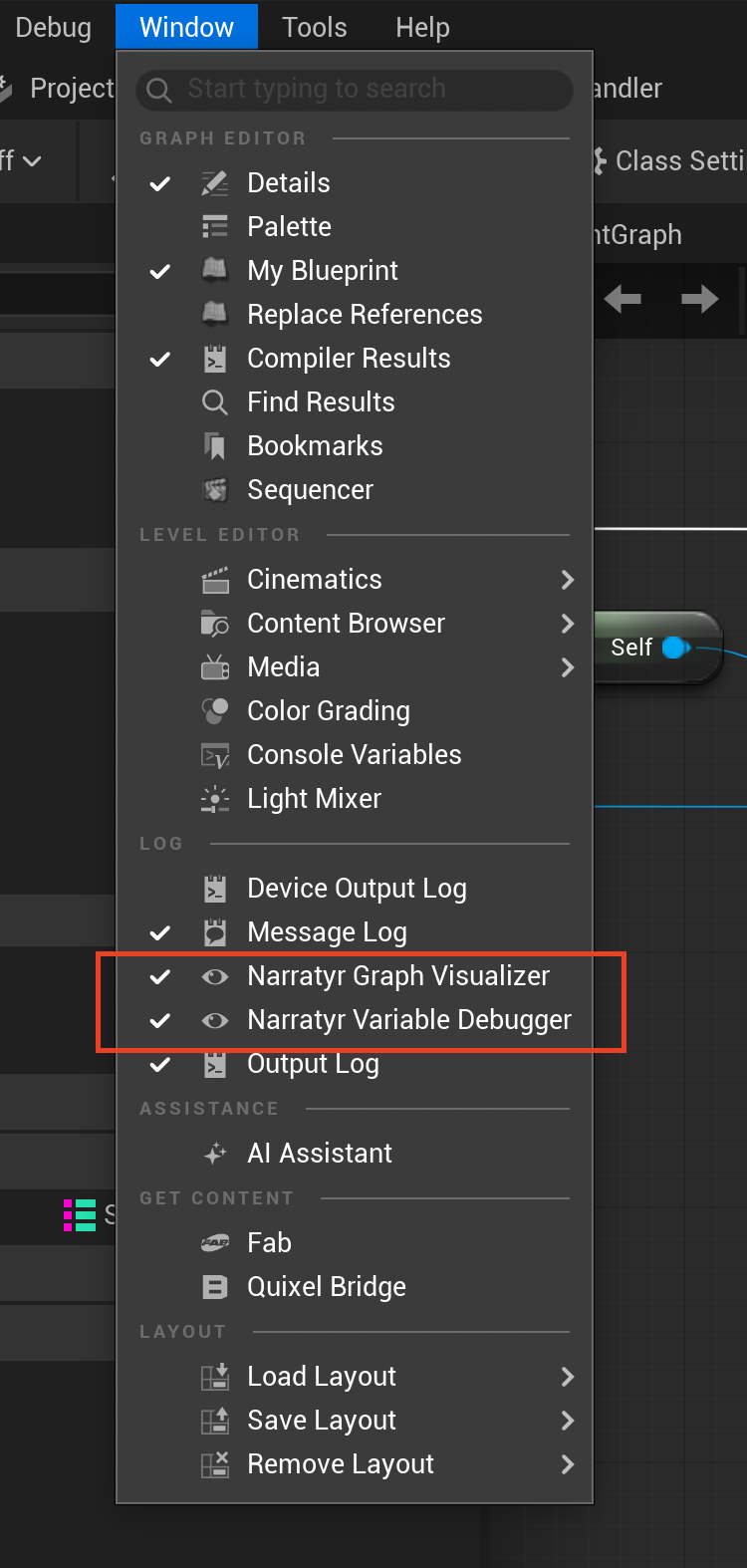
Variable debugger
The tab docks as Narratyr Variables and lists every variable in the project with its type and current value. Outside a play session, it shows project defaults as read-only values. During Play In Editor, it displays live editable values. Change a true or false value, select an option set entry, enter a number, or edit a list.
Edits go through the variable manager, just like graph writes. A Gate or Event Listener responds when you change the required value. This lets you test a branch without playing up to it.
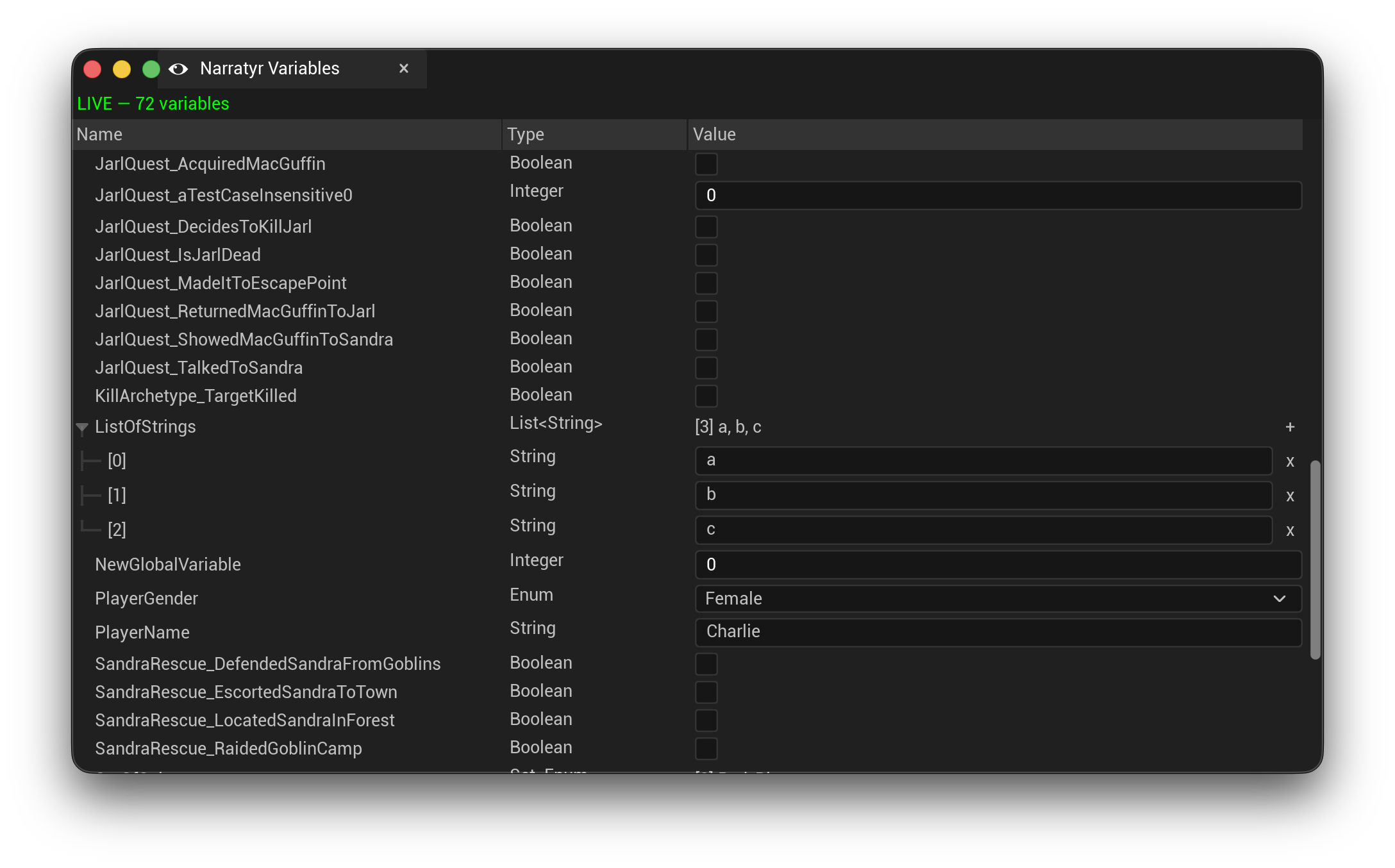
Graph viewer
The Narratyr Graph tab provides a read-only view of a quest or dialogue graph with its Narratyr layout. During Play In Editor, it can follow a selected flow player or the latest activity. Turn on Auto focus current node to track the flow cursor on the canvas.
Node History lists nodes entered by the flow, including nodes processed automatically before you opened the viewer. Selecting a node shows its project properties on the right, so you can read the condition a gate is actually waiting on.
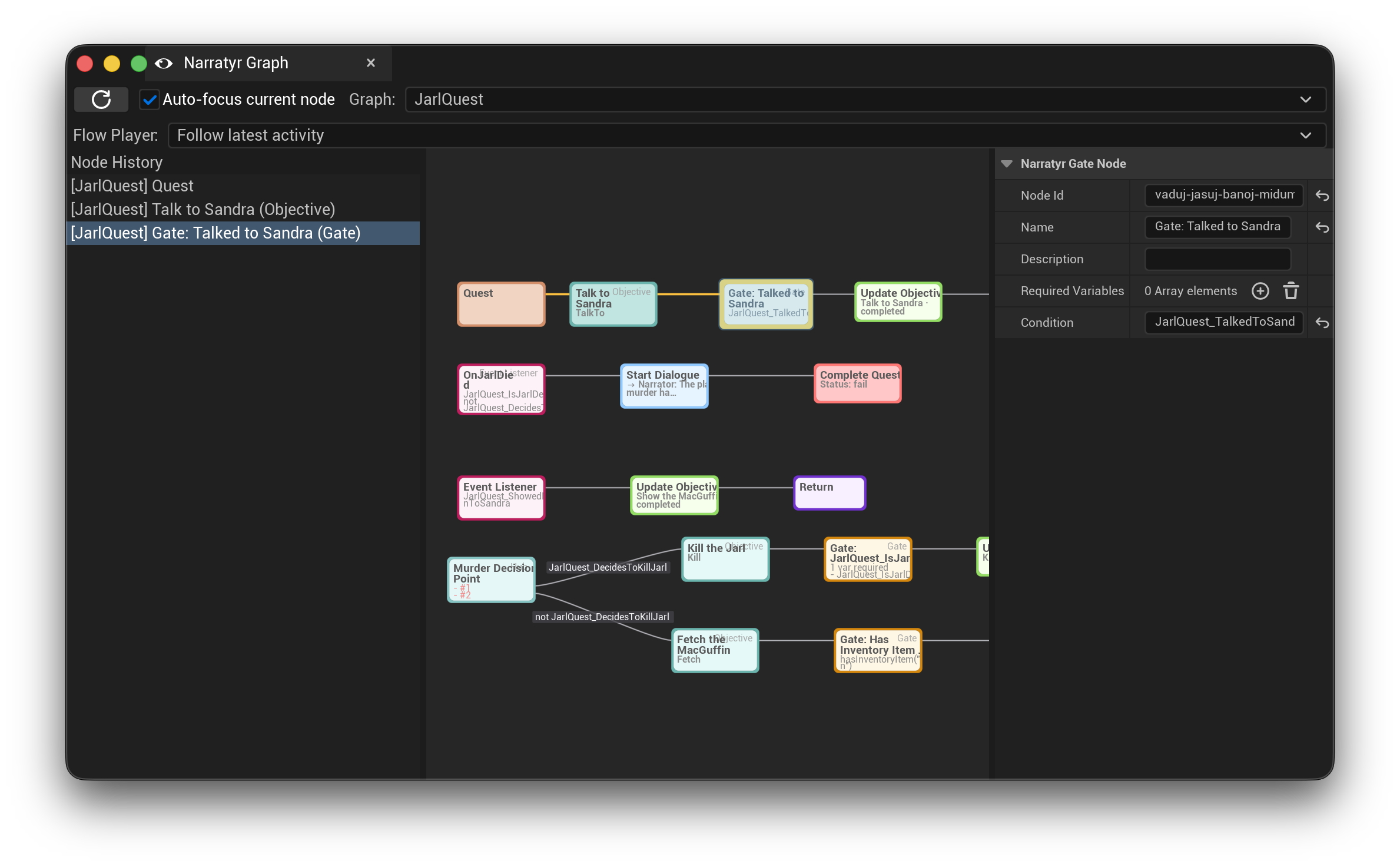
Double-clicking an imported graph asset opens the same visualizer in an asset editor.
Iterating
After changing content, select Export Data, then return to Unreal Editor. The plugin imports changed files into the open project.
Reinstall the module when the schema moves:
- an option set added, renamed, or changed
- a property set or entity type changed
- a function added, renamed, or re-signed
- a quest graph added or removed when using the generated
ENarratyrQuestIdenumeration - items deleted from the project, so the generated code stops referring to them
- a Narratyr upgrade that includes plugin changes
Teams can commit Content/NarratyrData/ and generated source with the project. They can also
regenerate those files during a build step.
From the command line
For a build step, the narratyr CLI runs the same exporters headlessly and produces
byte-identical output:
narratyr export --engine unreal --operation data \
  --project /path/to/MyStory.ntproj \
  --out /path/to/MyGame
--operation takes install, data, or both. --no-cleanup disables the orphan
cleanup enabled by default for Unreal data exports, and --json emits a
machine-readable result for a CI step to parse. The CLI reads the license installed by the
desktop app, so the same entitlements apply.
Troubleshooting
Exporting is disabled. The free tier caps how many graph nodes a project can export.
The message reports the cap and your project's node count. Activate a Pro licence or reduce
the node count.
No .uproject file found. Modules were not registered. The export path isn't the Unreal
project root. See Setting the export path.
Generated types are missing from Blueprint. Build the module after the latest Install Module operation, then reopen the editor.
Assets in Content/NarratyrData aren't updating. Run Install Module at least once because
the plugin's editor module contains the importer. Restart Unreal Editor after the first install.
A flow stops without an event. Resume any node type added to the stop set. Development builds
log the stopped node. A DeadEnd result means no outgoing edge passed its condition. Bind
OnFlowError to receive details for each blocked edge.
A listener never fires. Check that its graph is on the primary flow's stack and its
condition calls only declared pure functions. Call NotifyExternalStateChanged() after
changing game-owned state. Notify on falling changes too, so the listener can re-arm.
A gate never opens. Its condition depends on something outside the variable manager
and the quest manager. Call NotifyExternalStateChanged() after that state changes.